Before / after
Same frame, different result
On the left, the original frame taken from the video. On the right, the result after Enhance and AI 2× Upscale. Drag the line to compare.


Pixels
Pixels a screenshot doesn’t have
Take a screenshot of a 4K video filling the screen, and you keep only as many pixels as the screen has. Keeper takes the frame from the video file itself, and can enlarge it up to 2× with AI.
For a 4K (3840×2160) video viewed full screen in landscape on an iPhone 16 Pro. Areas are in proportion to the actual pixel counts.
Video first, photo later
Good thing you filmed it.
You filmed because you couldn’t know when the moment would come. The photo can come later.
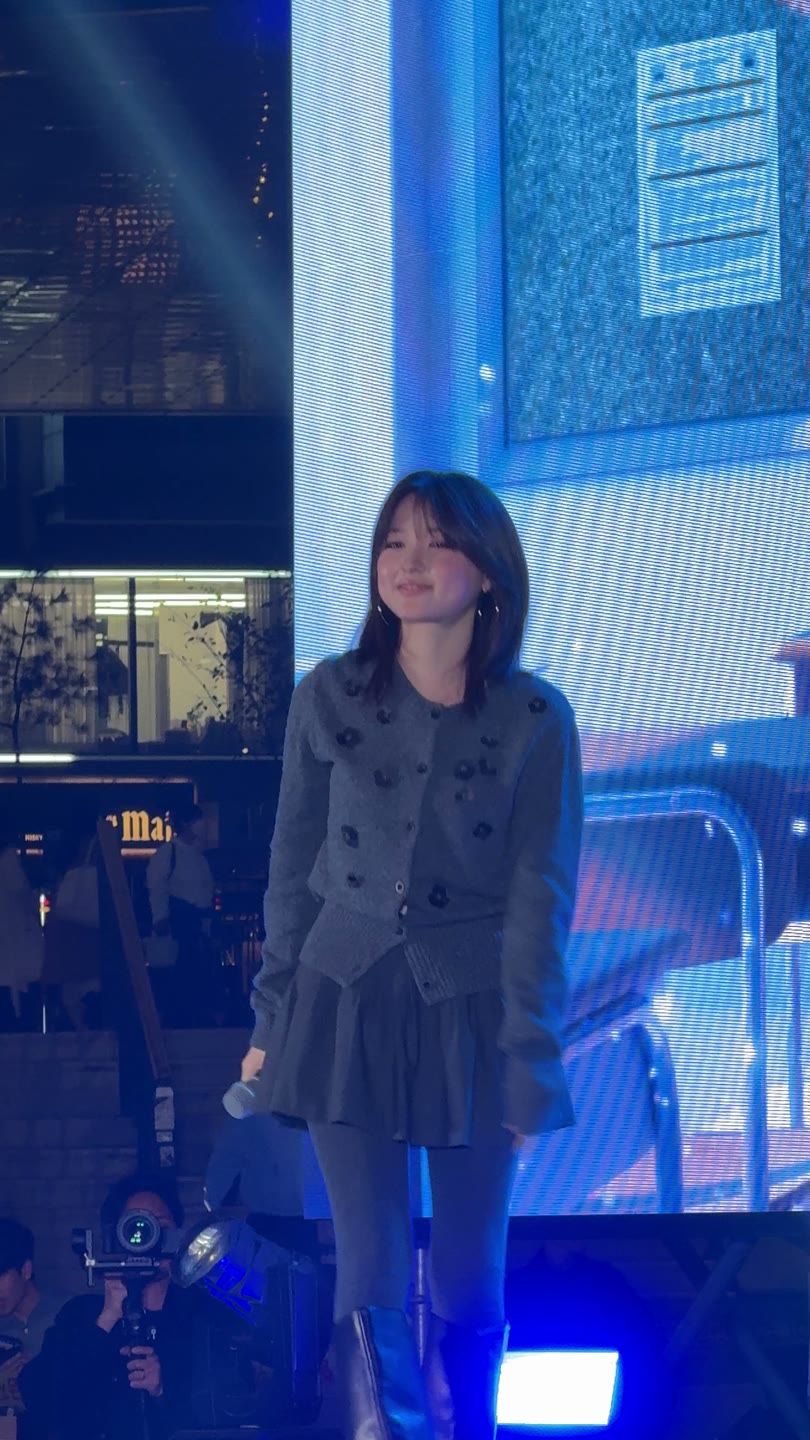
Just the frame where your eyes met
- Sharp Moments scans the whole video and finds up to 12 moments where faces are clear.
- Tap a face and the list becomes the moments where that person is clear.
- Crop to just the part you need from a frame of the whole stage: 1:1, 4:5, 16:9 or freeform.
- Enhance restores faces separately and refines noise and edges. There is a Concert Photo option too.
Features
Seven ways Keeper gets the frame right
Straight from the original
No screenshots. Selecting the full frame of a 4K video gives you a 4K image.
Precise, frame by frame
Play or scrub the timeline to find the moment, then step one frame at a time with the arrow buttons.
Just the part you need
Choose the full frame or a ratio, then drag the area. Keeper saves the original pixels inside your crop.
Saved as lossless PNG
Saved without extra JPEG compression. HDR videos are saved in standard dynamic range (SDR), and edits made in Photos aren’t included.
Light, and on your device
No sign-up and no server uploads. Originals stored only in iCloud are downloaded through iCloud Photos.
Photos work the same way
Photos from the Library get the same crop and enhancement. A photo has no neighboring frames, so only the steps that read them are skipped.
AI Enhancement
Faces are restored separately, and noise and edges around them are refined. AI 2× Upscale keeps the original aspect ratio and saves at the 2× resolution the AI restores. Videos and images never leave your device.
How it works
Pick, find, keep
Pick
Choose a video or a photo in the Library or Albums tab.
Find the moment
Pick one from Sharp Moments, or play and step frame by frame to find it yourself.
Crop
In Capture Area, keep the full frame, or crop freeform, to the original ratio, 1:1, 4:5 or 16:9.
Choose the quality
Add face restoration and AI 2× Upscale with Enhance, or turn it off and keep the original pixels.
Keep
Tap Capture This Frame, and the PNG is saved to your photo library. Check it at 100% and share it.
On device
Your videos and photos never leave your device.
- No sign-up
- No server uploads
- Processed on device
The details are in the privacy policy.

Keeper
iPhone · iPad · iOS 18 or later
Coming soon to the App Store